Links to nodes
A hyperlink in Freeplane does not have to point at a file or a web page. It can point at a node — in the same map or in another map — and following it selects that node, switching to the other map if needed.
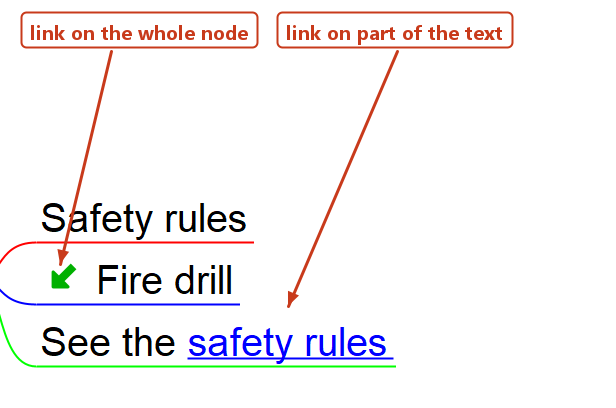
The link can sit on the whole node, or on a few words inside the node text. Both kinds are shown below: Fire drill carries the link on the node, and See the safety rules carries it on two words of its text.
Copying the address of the target node
Select the node you want to link to, then use one of:
Edit->Copy->Copy node IDcopies the bare id, likeID_1234567. Node ids are unique within one map only.Edit->Copy->Copy node URIcopies a complete address, likefreeplane:/%20/C:/maps/handbook.mm#ID_1234567. It carries the map along, so it also works from another map and from outside Freeplane.
Linking the whole node
The shortest way needs no copying at all:
- Select the target node and use
Insert->Link->Set link anchor. - Select the node that should carry the link and use
Insert->Link->Make link to anchor.
Freeplane then writes #ID_1234567 when both nodes are in the same map, and handbook.mm#ID_1234567 when they are not.
Two other ways:
Insert->Link->Add hyperlink (URL)…(Ctrl+K) opens a text field where you can paste any of the addresses above.Insert->Link->Add local hyperlink(Alt+Shift+L) works on a selection of two or more nodes: the node selected last becomes the target, and every other selected node gets a link to it.
A node that carries a link shows a small arrow before its text.
Linking part of the node text
- Press
Alt+Enter(Edit->Node core->Edit node core in dialog) to open the node in the rich text editor. - Select the words that should become the link.
- In the editor's own
Editmenu, chooseEdit Hyperlink Manually…(Ctrl+H), and type or paste the address.
Every address that works for a whole node works here too:
| Address | Points at |
|---|---|
#ID_1234567 | a node in the same map |
handbook.mm#ID_1234567 | a node in another map, path relative to the current map |
freeplane:/%20/C:/maps/handbook.mm#ID_1234567 | a node in another map, by absolute path — this is what Copy node URI gives you |
One node can hold several such links. They are drawn as links — blue and underlined — without any extra formatting on your part.
Following a link
- A plain click on the link follows it. This is the default; the option is
Preferences…->Behaviour->Open node link on simple mouse click. - With that option off,
Ctrl+clickfollows the link instead. Shift+clickopens the target in the other map view — see Hot keys and beyond.
The mouse pointer turns into a hand over any part of the text that carries a link, which is the quickest way to check that a link was really applied to the words you meant.
When a link does nothing
- A
file:address written with a plain space.file:/C:/my maps/handbook.mm#ID_1234567is not followed, and nothing is reported. Write the space as%20, or useCopy node URI, which encodes it for you. A relative address (my map.mm#ID_1234567) and a plain path (C:\my maps\handbook.mm#ID_1234567) are fine as they are, spaces included — only thefile:form needs the encoding. - The target id is not in the target map. The status bar shows
Link … not found. Since ids are unique only within a map, a node copied into another map can share an id with a node already there; prefer the anchor commands orCopy node URIover typing ids by hand.