AI prompts and profiles
The prompt features described on this page require Freeplane 1.13.3
or later. Assistant profiles are documented here together because they
are closely related in everyday AI use.
Benefits and risks
Benefits:
- profiles make normal chat behavior more repeatable,
- prompts make repeated AI actions launchable from menus,
- prompt/profile model parameters and prompt-specific tool settings can be saved only when needed.
Risks:
- prompts can run hidden,
- prompts and profiles can use saved model parameters that are different from the current chat settings,
- prompts can also use saved tool settings that are different from the current chat settings,
- prompt output is still untrusted and should be reviewed before you rely on it.
Profiles and prompts are not the same thing
Assistant profiles are reusable instructions for normal AI chat. They help you keep a consistent role, tone, structure, or editing policy across many requests.
Prompts are saved AI actions that you can run directly from menus. A prompt can open its own chat or run in the background.
| Use case | Assistant profiles | Prompts |
|---|---|---|
| Main purpose | Reusable chat behavior | Reusable saved action |
| Where you use it | AI profile in the AI chat panel | AI menus in the main menu and node popup |
| Stored settings | Name, instruction text, optional model, optional thinking effort, optional temperature | Name, prompt text, visibility, optional model, optional thinking effort, optional temperature, optional tools |
| Uses the current profile? | Yes | No. Prompt runs stay separate from assistant profiles. |
Manage assistant profiles
Open Edit profiles... from the AI panel to create or edit reusable
profiles.
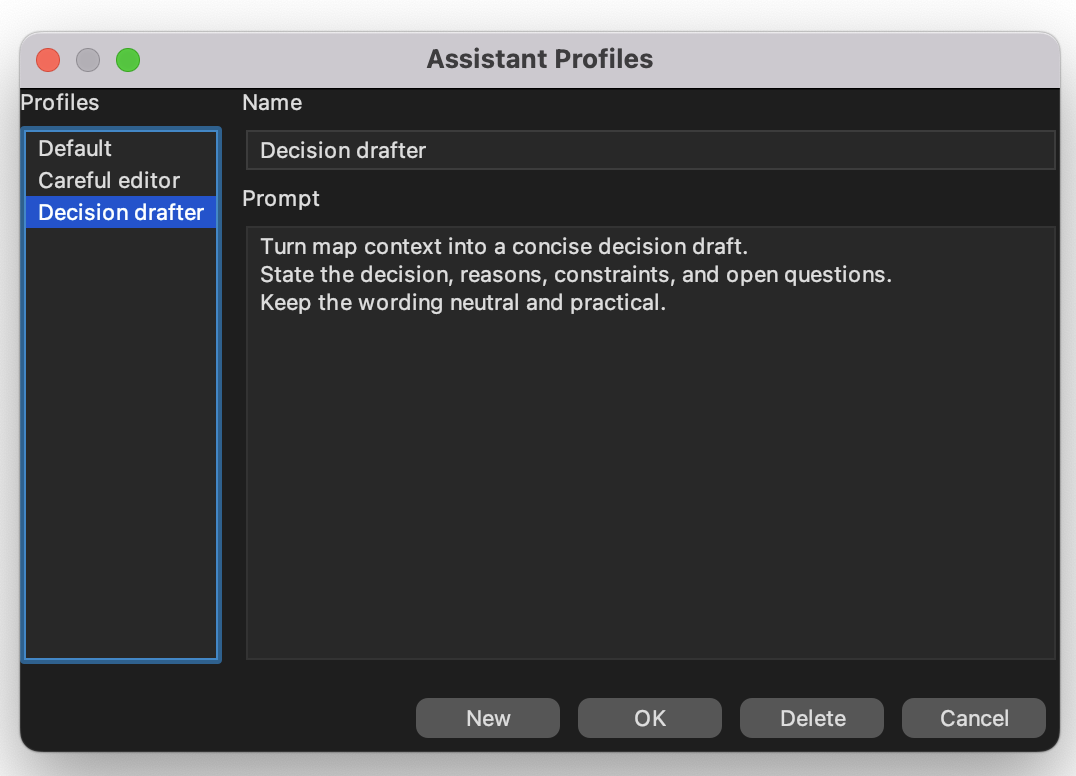
Assistant profiles store reusable chat instructions.
Typical profile uses:
- careful editing,
- summarization,
- decision drafting,
- project-specific writing rules.
A profile affects normal AI chat. It does not create a separate saved menu action.
A profile can also store optional model-configuration values: model,
thinking effort, and temperature. Leave these fields as Current when
the profile should inherit the current chat/default values.
When a profile is applied to a chat, Freeplane stores the profile message
snapshot in that chat. Later changes to the profile definition do not
rewrite earlier chat history. Use Show instruction history in the AI
chat options menu to inspect committed profile instruction blocks.
Preview next request instructions shows the effective profile message
for the next visible request. If you select a different profile, the
preview shows that pending profile message before you send the request.
Manage prompts
Open Edit prompts... from the AI menus to create or edit saved
prompts.
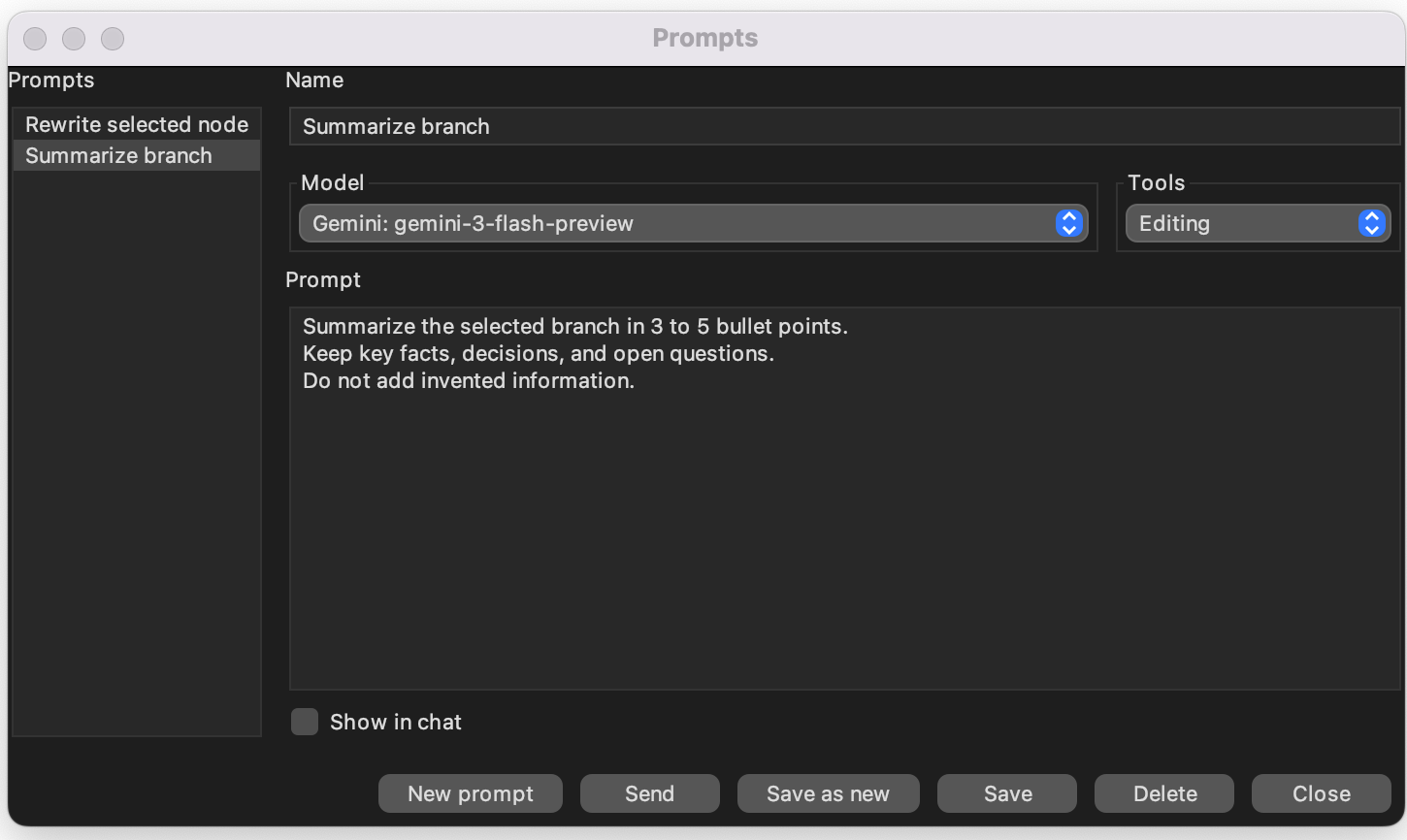
Prompts are saved actions with their own visibility, model configuration, and tool settings.
Prompts can be run from:
- the main menu AI section,
- the node popup AI section,
- the prompts dialog itself.
In the prompt editor, the Model, Thinking effort, Temperature,
and Tools selectors are optional. You can set them explicitly for that
prompt, or leave them on Current so the prompt inherits the values
already in effect.
Unlike assistant profiles, a prompt is meant to be executed directly.
Where prompts and profiles are stored
Prompts and profiles are stored in your Freeplane user directory.
You can open that directory from Tools > Open user directory.
Files used by Freeplane:
- assistant profiles:
ai-assistant-profiles.json - prompts:
ai-prompts.json
If you save or change prompts or profiles, these files are updated in that user directory.
Prompt behavior
Each prompt stores whether it should:
- Show in a new chat — open a fresh visible AI chat for the prompt, or
- run hidden — execute without replacing the currently visible chat.
Shown prompts open their own chat instead of appending to the previous conversation.
Hidden prompts do not stay as saved visible chats. Freeplane can still show progress while they run, and you can cancel them.
Slash prompt references in chat
In a normal AI chat draft, you can start the input with / and a saved
prompt name. When the leading slash text resolves to a saved prompt,
Freeplane substitutes that prompt's saved text into the model-facing
message while keeping the /prompt name reference visible in chat.
This is not the same as running the prompt from a menu. Slash prompt references ignore the prompt's visibility, model, thinking-effort, temperature, and tool settings.
Prompt/profile model parameters and tools
A prompt can use:
- the current chat model, thinking effort, temperature, and tool settings, or
- its own saved model, thinking effort, temperature, and tool settings.
A profile can use:
- the current chat model, thinking effort, and temperature, or
- its own saved model, thinking effort, and temperature.
For prompt and profile controls, Current means the field is inherited.
For temperature, Model default is different from Current: it
explicitly sends no temperature value to the provider and can override a
numeric value inherited from a lower-priority setting.
If a shown prompt opens a chat with its own model-configuration or tool setting, that chat starts with the prompt's effective values. Later, if you change the model, thinking effort, temperature, or tools in that chat yourself, the chat returns to the normal current-setting path.
Profiles versus prompts in practice
Use a profile when you want AI chat to behave consistently across many requests.
Use a prompt when you want a saved action you can launch directly, for example:
- rewrite the selected node,
- summarize a branch,
- draft a decision,
- run a hidden background analysis.
A common pattern is:
- use a profile for ordinary interactive chat,
- use prompts for repeatable one-click actions.
Groovy scripts can also run saved prompts by name. For that scripting API, see Asking AI from scripts.