AI integration: getting started
AI integration is available starting with Freeplane version 1.13.1.
The newer features linked from this page — prompts, model-parameter
controls, editor attachment, AI-owned script review, formula-editing
controls, and script-facing AI requests — require Freeplane 1.13.3 or
later.
Benefits and risks
Benefits:
- AI can summarize, rewrite, inspect, and help edit map content faster.
- Prompts, profiles, formulas, and scripts can make repeated tasks easier.
Risks:
- Depending on your provider and setup, map content sent to AI may leave your machine.
- Model output can be wrong, misleading, or influenced by map content.
- Higher-permission features such as editing, formula authoring, script execution, and MCP increase risk and should be enabled deliberately.
For the higher-risk features, read AI formulas and script editing and Model Context Protocol server before enabling them.
Configure AI in Preferences
Open AI Preferences from the AI panel toolbar burger menu, then configure the AI options.
Required user input:
- For OpenRouter:
AI OpenRouter key
- For Gemini:
AI Gemini key
- For Ollama:
- set
AI Ollama service address(for examplehttp://localhost:11434or your remote endpoint URL). - optional: set
AI Ollama API keywhen your Ollama endpoint requires token authentication.
- set
Notes for Ollama:
- Ollama is available only when
AI Ollama service addressis set. - When
AI Ollama API keyis non-empty, Freeplane sendsAuthorization: Bearer <key>for Ollama chat and model discovery requests.
If configuration is missing, chat shows:
No AI provider is configured.
Important AI controls
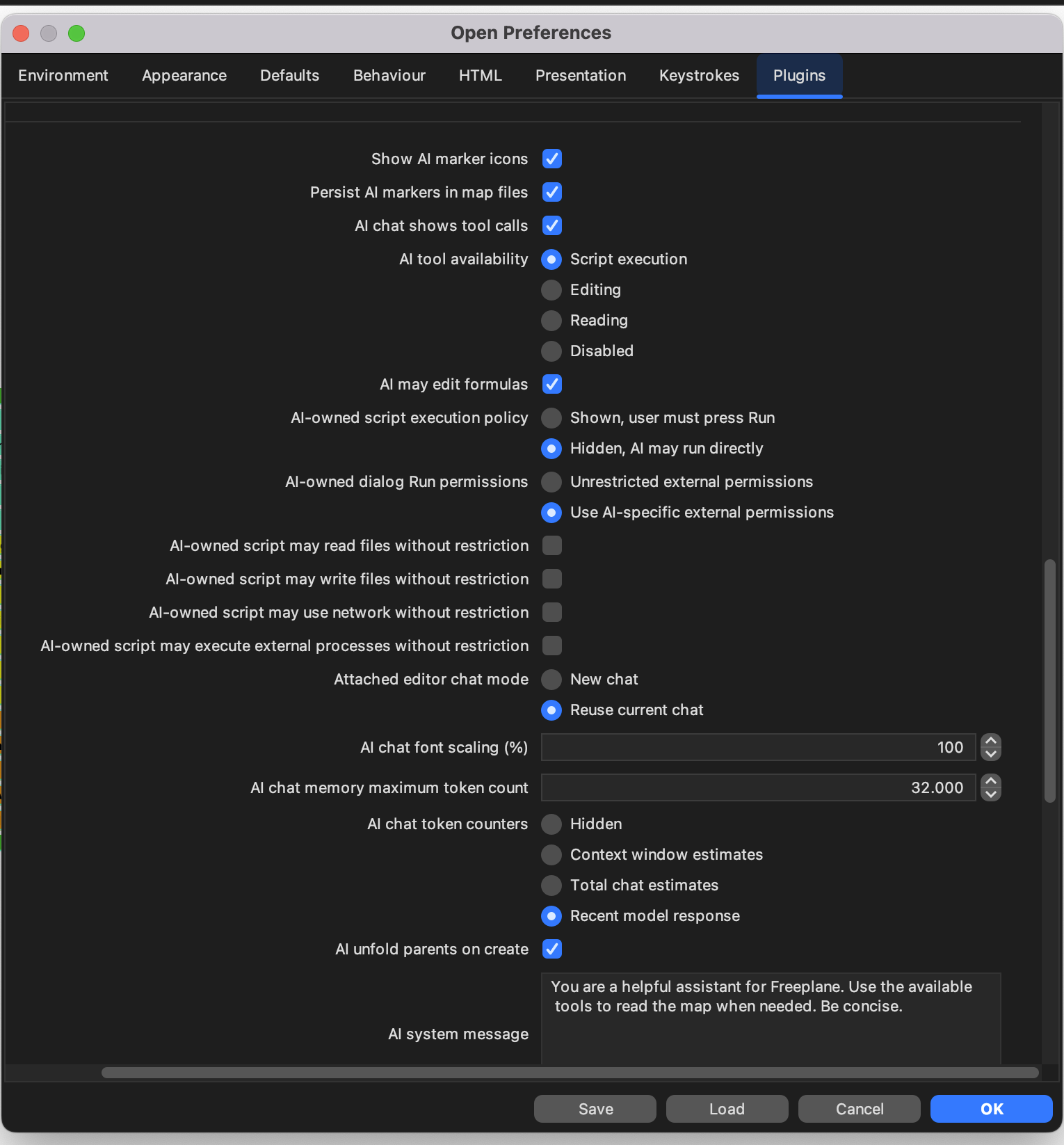
The following settings matter for most current AI workflows:
AI tool availabilityDisabled: no general AI toolsReading: AI can inspect map content without changing itEditing: AI can also make normal map editsScript execution: AI can also work with AI-owned scripts and code editing features
AI may edit formulas- separately allows AI to help author formulas when general tool availability is high enough
AI-owned script execution policy- controls whether AI-owned scripts are shown for review or may run directly without user review
AI chat shows tool calls- shows AI and MCP tool activity in chat
AI thinking effort- sets the default provider-independent thinking level where the selected provider/model supports it
AI temperature- sets the default temperature;
Model defaultsends no temperature value to the provider
- sets the default temperature;
Send your first AI chat message
- Open the
AIpanel. - Type a request in the input area.
- Use
Sendor pressCommand/Ctrl + Enterto start the request. - Use
Cancelto stop an active request.
Helpful chat controls:
New chat: start a clean live chat.Chats: open the chat list dialog.Edit profiles...: open profile management.AI profile: shows or selects the active profile.- model selector: selects the provider/model used by ordinary chat requests.
- thinking-effort selector: sets the default thinking effort used by ordinary chat requests.
Temperaturein the AI panel menu: sets the default temperature used by ordinary chat requests.
Next steps
- Continue with workflow patterns in AI chat workflows.
- Learn how prompts and profiles differ in AI prompts and profiles.
- Learn about editor attachment, formulas, and script editing in AI formulas and script editing.
- Learn about direct AI-owned script execution in AI-owned script execution.
- For remote tool access, see Model Context Protocol server. MCP is disabled by default and should be enabled only when needed, for example when using Freeplane from local MCP-capable tools such as Claude Desktop or Codex App.
- For diagnosis, see AI integration troubleshooting.
- If you write Groovy scripts and want them to call AI, see Asking AI from scripts.